
1-Simulation: Directory and File Organization
2-Simulation: Managing Files with Nautilus
3-Simulation: Backing-up your system configuration

1-Simulation: Directory and File Organization
Determining File Content
Files can contain many different types of data. The contents of any given file might be ASCII or binary.
ASCII files include, but are not limited to, these types:
Plain text
HTML
Executable shell scripts
C program source code
Mailbox-format text
Binary files include, but are not limited to, these types:
Compiled executables
Compressed data
Images
Sound samples


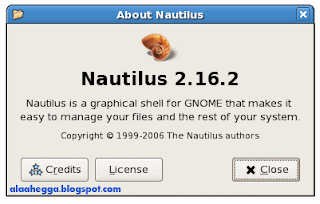
Nautilus is a graphical filesystem browser provided as part of the GNOME graphical environment. Although managing files from the command line can be more versatile and powerful, many people find a graphical interface to be more intuitive.
Nautilus can run in either of two modes:
Spatial mode
Browser mode
Spatial mode is designed to be the most intuitive for new users and is the simplest in terms of user-interface clutter. Windows have a very basic layout with no toolbar; when a directory is double-clicked it opens in its own window. A menu in the lower-left of each window allows the user to list and select parent directories of the one currently displayed. Typing Ctrl-Shift-W closes all parent windows.
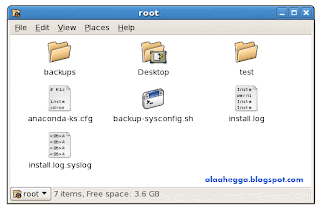
Spatial mode
Browser mode provides a more traditional file-manager interface with a side pane on the left that can display file details, a filesystem tree, or even notes the user has taken about the contents of a directory. The categories displayed in the sidebar can be selected from a drop-down menu. Folders open in the same window instead of in new ones, and the user navigates using the standard back, forward, and up icons available in most graphical file managers.

Browser mode
To access Nautilus, use one of the following methods:
Desktop icons
Computer icon
Home directory icon
Removable device icons (CD-ROMs, USB drives, floppy disks)
Menu option
Applications > System Tools > File Browser
The two most common ways to access Nautilus are via desktop icons or a menu option. The desktop icons labeled Computer, and for example, Joe’s Home will each open a Nautilus window in spatial mode. The Home icon opens a window that displays the user’s home directory. The Computer icon opens a window that presents an ordered view of available filesystem resources. This includes the Filesystem icon, which opens a window displaying the root directory; the Network icon, which allows the user to browse the local network for shared disks; and an icon for each removable media filesystem, such as those on CD-ROMs, floppy disks, and USB drives.
Nautilus can be started in browser mode by selecting File Browser from the Applications menu under System Tools in the upper left corner of your GNOME desktop. If you would like Nautilus to always start in browser mode, even when accessed via the desktop icons, open a Nautilus window, select Edit > Preferences from the menus, go to the Behavior tab, select Always open in browser windows and click Close.
Moving and Copying in Nautilus
The following keyboard shortcuts apply to Drag-and-Drop in Nautilus:
Drag
Moves on the same filesystem, or copies if on a different filesystem
Drag + Ctrl
Always copies
Drag + Alt
Asks whether to copy, move, or create a symbolic link (alias)
If the destination is on the same filesystem as the source, when you drag and drop files, Nautilus will move the file instead of copying it. To force Nautilus to copy instead of move, drag the file to its destination and press Ctrl before releasing the mouse button. Holding the Alt key instead will make Nautilus ask whether to copy, move, or create a symlink. A symlink, or symbolic link, is an alias to the source file that does not take up extra space on the drive.
Right-clicking an object in Nautilus opens context menu listing actions you can take on that item. The exact contents of the context menu depend on what is being clicked (the "context" of the click). For files or directories, the context menu includes options to copy, cut (move), or rename the selected object. If you cut or copy a file or directory and then right-click your desktop or a directory, then the context menu will include a paste option. Selecting this option will copy or move (depending on whether the source file was copied or cut from its original location) the previously selected object (or objects) into the directory.
Changing Directories
The shell prompt displays the last component of the directory name, for example, it displays student01 to represent /home/student01. To move from directory to directory on the system, use the cd command.
The cd command accepts one of two arguments:
An absolute or relative path name
A shortcut representing the directory to which you wish to change
A number of shortcuts are at your disposal for use with the cd command. A dot (.) and a double dot (..) are two shortcuts found in every directory. The . shortcut represents the current directory, whereas the .. shortcut represents the parent directory.
For example, if your current working directory is /home/student01, what would typing the following do?
cd ..
It would move you to the /home directory.
The tilde (~) is an abbreviation for “home directory.” Used by itself, it represents your own home directory. Used as a prefix to another user’s login ID, it represents that user’s home directory.
A dash (-) represents your previous working directory. It’s a handy shortcut to use to switch back and forth between two directories.
For example:


Filesystem Principles
In this lesson, you will study Linux file hierarchy principles. You will learn about the contents of some important directories, some rules for naming files and directories, and how to display the current working directory. You will also look at the difference between absolute and relative path names.
Linux File Hierarchy Principles
Filesystem Basics
These Linux file hierarchy concepts will be expanded upon in the pages that follow:
• A single-rooted, inverted-tree structure is used for organizing files and directories, including distinct physical volumes, such as floppy disks, CD-ROMs, and multiple hard drives.
• The base of the inverted-tree hierarchy is known as root, or /, and is the top of the file structure.
• A forward (/) slash separates elements of a path name, for example /usr/bin/X11/X.
• Names in the Linux file hierarchy are case sensitive.
• Each shell and process on the system has a designated current or working directory.
• Two dots (..) refer to the parent directory of any particular directory, which is one level up in the file hierarchy.
• One dot (.) refers to the current directory.
• Files and directories whose names begin with a dot (.) are hidden, that is, they are not displayed by default in file-name listings.
• A user's path is a list of directories that are searched for commands typed at the command line.
Note:
Linux uses the forward slash (/) to separate elements of a path name, whereas DOS (Windows) uses a back slash (\).
Present Working Directory
The present working directory is the directory in which you are currently working. To view the present working directory, use the pwd command. When you type the pwd command at the command line, the absolute path to your current working directory is displayed. For example

Absolute and Relative Path Names
The location of a directory or file can be specified by either of two arguments: its absolute path name or its relative path name. An absolute path name has these characteristics:
Begins with a forward slash (/)
Contains the complete name of each directory that must be traversed from the root file system up to the object being named
Can be used anytime, and is valid regardless of the current directory
A relative path name has these characteristics:
Does not begin with a forward slash (/)
Specifies the location of the file or directory relative to the current working directory
Is usually shorter than the respective absolute path name
1-Simulation: Logging in and using basic Linux commands
What is Sabily ?
Sabily is an operating system, like MS Windows or Mac OS X. Without an operating system, a computer is unusable, and Windows is not the only OS available! (though you often don't have the choice, that's why we are working hard to fix the bug number one)
I already have Windows, why would I use Sabily ?
Because Sabily is free, already includes all software you need in your everyday tasks, and is customized specifically for Muslims. And even if you didn't buy Windows, you should not use pirated copies because then you are still supporting Microsoft by adding to the impression it's the only OS available.
It should be a tremendous work to develop an operating system?
Actually we don't start from scratch, we use the Ubuntu operating system as a groundwork. Ubuntu is a GNU/Linux distribution whose goal is to provide an easy-to-use, up-to-date, stable and free system, also for companies. Sabily customizes Ubuntu by removing, modifying and adding software, and also customizes the graphic design to make a system adapted to Muslims.
Is there a company like Microsoft which develops Sabily?
No there isn't, just a communauty of voluntaries coming from all over the world (France, Tunisia, Egypt, Indonesia etc.). You can as well participate, as a developer, a graphic designer, a tester or if you just want to share your ideas.
What are the main features of Sabily?
The main software are: Zekr and Mus-haf Othman (Quran study tools), Minbar and Firefox-praytimes (prayer times applications), Monajat (application that popups prayers every predetermined time), Hijra (islamic calendar) and WebStrict (parental control tool). Arabic language is also well supported. And of course the graphic design is also customized (see screenshots).
What other software are included in Sabily?
OpenOffice (word processor, spreasheet, presentation), Firefox (web browser), Pidgin (instant messaging), F-spot (photos management), Gimp (image manipulation program) and other multimedia software (video/audio). All of this in included in the "small" version of Sabily, but the "full" version contains dozens of other software! (educational software, tools and entire Quran recitations, see the full list here)
Sabily seems very interesting, what should I do to use it?
You have to download the ISO file and to burn it on a DVD, then to start your computer from the DVD. You will have the choice to test or to install the system. In a first time we advise you to test it because it is safe for your computer, nothing will be written on your hard disk. You can even test Sabily directly from Windows, by using a Virtual Box image.